IMAGE/INE
Capture and Play Live Video
Only edit what is highlighted in white in the Mapping Window.
Choose F1 to view live video in the Foreground. If there is no video, check your video cables and settings.
WRITING PLAYBACK
Open Display States and save a state in "0"
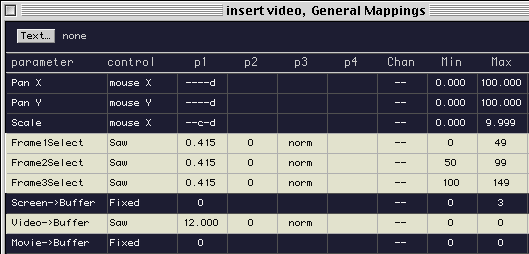
Under Frame1Select choose:
LFO: Saw
p1/first column: .415 (effects speed, lower the number for slow motion)
p3 (loop): norm (norm refers to continuously looping)
min: 0 (refers to the first frame in the Buffer)
max: 49 (last frame in the Buffer)
Under Frame2Select keep all above settings the same and change:
min: 50
max: 99
Under Frame3Select change:
min: 100
max: 149
Save Display State "0"
Save your Image/ine file.
WRITING RECORD FROM VIDEO
Open Display States and save a state in "1"
Under "Video to Buffer" write:
LFO: Saw
P1: 12 (frames per second)
P3: norm (will loop, or constantly record)
Min: 0
Max: 49
Save a display state in "2"
LFO: Saw
P1: 12 (frames per second)
P3: norm (will loop, or constantly record)
Min: 50
Max: 99

Save a display state in "3"
Continue as above changing:
Min: 100
Max: 149
To record your project open the buffer and depress keypad 1 until your frames have recorded (they will loop record). To stop recording depress keypad "0" to activate your default display state. Repeat with display states 2 and 3.
You may view your recordings by using F5, F6 and F7 into any of the three channels.
< >